
Are you trying to clean up your Amazon account by removing an old credit card? Perhaps you’ve switched banks, received a new card, or simply want to streamline your payment options.
Whatever your reason, understanding how to delete a credit card on Amazon is essential to maintaining control over your financial data. It’s not just about tidying up—it’s about ensuring your account’s security and making your shopping experience smoother. In this guide, we’ll walk you through each step of the process, giving you the confidence to manage your payment methods efficiently.
Accessing Your Account Settings
Navigate to the ‘Your Account’ section on Amazon to manage payment methods. Select ‘Payment Options’ and locate your credit card. Choose ‘Remove’ to delete it swiftly.
Accessing your Amazon Account Settings is a crucial first step in managing your payment methods, like deleting an old or unused credit card. Whether you’re looking to tidy up your digital wallet or simply want to update your payment options, knowing your way around Amazon’s interface is key. Let’s break it down into simple, actionable steps to help you navigate effortlessly.
Navigating To Your Account
First things first, you’ll want to log in to your Amazon account. Once you’re logged in, look for the “Accounts & Lists” dropdown menu at the top right corner of the homepage. Clicking this will reveal a plethora of options related to your account management. A helpful tip: Bookmark the Amazon homepage for quicker access next time. This not only saves time but also makes it easier to jump into your account settings without hassle.
Locating Payment Options
After you’ve clicked on “Accounts & Lists,” the next step is to find the “Your Payments” section. This section is where all your payment methods are stored, including any credit cards you’ve used. It’s like finding the drawer where you keep all your financial tools. You want to make sure that the drawer is organized and only contains what you truly need. Once there, you’ll see a list of all the payment methods linked to your account. From here, you can select the credit card you wish to delete. Have you ever noticed how a cluttered wallet can be such a hassle? The same goes for digital wallets. Keeping your Amazon account streamlined with only necessary payment methods not only makes checkouts smoother but also enhances your account security. Wouldn’t it be more efficient if you could just click and remove unused cards with ease? Amazon makes it simple, and knowing where to look is half the battle won. So, are you ready to tidy up your payment options today?
Managing Payment Methods
Deleting a credit card on Amazon is simple and quick. Access your account, go to “Payment options”, select the card, and click “Remove”. This ensures your payment methods stay current and secure.
Managing your payment methods on Amazon is crucial for a seamless shopping experience. Whether you’re updating an expired card or just clearing out old details, knowing how to manage your stored payment methods can save you time and prevent potential issues at checkout. Plus, it feels good to declutter your digital wallet, doesn’t it? Here’s a straightforward guide to ensure your Amazon account is always ready for your next purchase.
Viewing Stored Credit Cards
To manage your payment methods, start by viewing the credit cards you currently have stored on Amazon. Log in to your Amazon account and head over to the “Your Account” section. Once there, find the “Payment options” link. You’ll see a list of all the credit cards linked to your account. It’s like peeking into your digital wallet. Take a moment to check which cards are active and which ones need updating or removal.
Selecting The Card To Delete
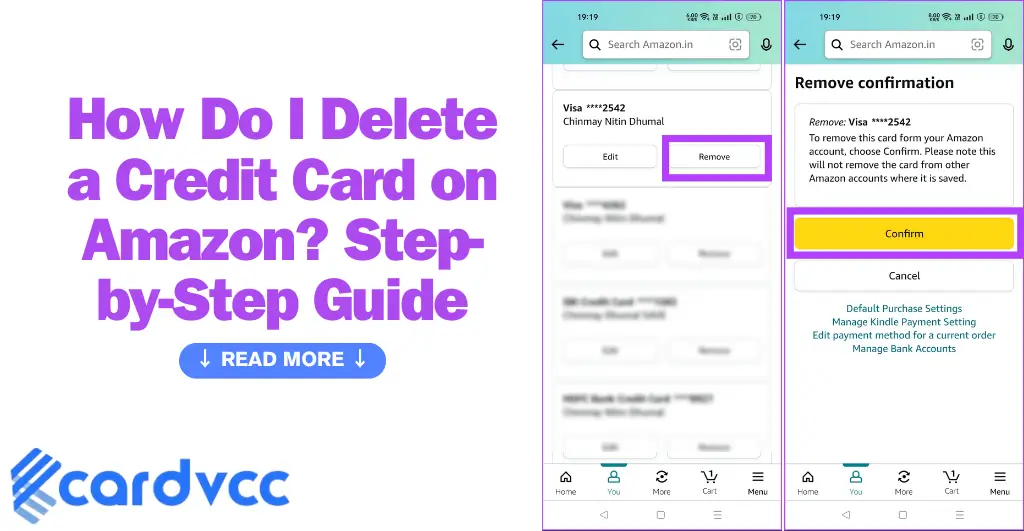
Once you have a view of all your stored cards, it’s time to select the one you wish to delete. Look through the list and identify the card you no longer need. Perhaps it’s an expired card or one you no longer use. Click on the “Edit” button next to the card details. You’ll be presented with options to update or delete. Choosing to delete a card is straightforward. Hit the “Remove” button and confirm your choice. This simple action can prevent future mishaps like accidental charges or declined transactions. Have you ever tried deleting a card and wondered if it’s the right one? Double-checking before you click can save you from potential headaches. Managing your payment methods effectively not only keeps your account secure but also ensures a smooth shopping journey. What’s your go-to strategy for keeping your digital payments organized? Share in the comments below!
Deleting A Credit Card
Managing your payment methods on Amazon is crucial. Sometimes, you need to delete a credit card. Whether it’s expired or you no longer use it, removing it is simple. This guide will help you through the process.
Initiating The Deletion Process
Start by logging into your Amazon account. Click on the “Accounts & Lists” dropdown. Select “Your Account” from the options. Look for “Payment options” under the “Ordering and shopping preferences” section. Click on it to view your saved payment methods.
Find the credit card you wish to delete. Click on the “Remove” button next to the card. Amazon will prompt you to confirm your choice. Proceed to the next step to finalize the removal.
Confirming Removal
After clicking “Remove,” a confirmation message will appear. Amazon wants to ensure you don’t delete by mistake. Review the card details carefully. Confirm you are deleting the correct card.
Click “Confirm Remove” to finalize the process. The credit card will be deleted from your account. You will no longer see it in your payment methods. It’s that simple.
Troubleshooting Common Issues
Deleting a credit card from Amazon is straightforward. Navigate to “Payment Options” in your account settings. Select the card you wish to remove, then click “Delete” to confirm. Ensure no pending transactions before removal to prevent issues.
Managing your payment methods on Amazon should be a straightforward process. However, sometimes things don’t go as smoothly as planned. If you’ve been trying to delete a credit card from your Amazon account and have encountered some roadblocks, you’re not alone. Let’s dive into some common issues you might face and how to tackle them effectively.
Error Messages
You may have seen error messages popping up when trying to remove a credit card. These messages can be frustrating, especially when they provide little information. Check to ensure you’re logged into the correct Amazon account. A simple mix-up can lead to unnecessary headaches. Consider if the card is linked to any active subscriptions or pending orders. Amazon won’t let you delete a payment method if it’s still in use.
Card Not Found
Another common issue is when the card you want to delete isn’t visible in your account settings. This can feel like a mystery if you’re sure the card was added. Verify if the card was removed automatically due to an expired date or invalid details. Amazon sometimes cleans up old data without notification. Reflect on whether you’ve added the card under a different account or profile. Double-check each account you manage to ensure you’re targeting the right one. If you still face issues, consider contacting Amazon’s customer service for assistance. They can offer a solution tailored to your unique situation. Have you ever wondered if there’s a smarter way to manage your payments? By addressing these common issues head-on, you ensure a smoother shopping experience. Don’t let simple errors hold you back from optimizing your Amazon account management.
Alternative Payment Options
Removing a credit card from Amazon is simple. Go to “Your Account,” select “Payment Options,” and choose “Manage Payment Methods. ” From there, click’ Delete’ next to the credit card you want to remove. This ensures a more streamlined online shopping experience by using alternative payment methods.
Switching up your payment methods on Amazon can be a refreshing change, especially if you’re looking to manage your finances better or explore different financial tools. Maybe you want to streamline your billing, or perhaps you’re experimenting with budgeting techniques. Whatever your reason, Amazon offers several alternative payment options that can suit your needs.
Adding A New Credit Card
Adding a new credit card to your Amazon account is straightforward. Simply navigate to your payment settings and click on “Add a Credit or Debit Card.” Enter your new card details, ensuring everything is accurate to prevent any future payment hiccups. Have you ever considered why you might want to add a new card? Perhaps it’s the allure of cashback offers or airline miles. Exploring new credit options can sometimes lead to surprising benefits and savings.
Using Gift Cards
Gift cards are a fantastic alternative to credit cards, offering a way to control spending while still enjoying the convenience of online shopping. Purchase an Amazon gift card from a local store or online, and redeem it in your Amazon account under “Gift Cards.” Have you ever found yourself with a small balance on a gift card and wondered how to maximize its use? Combining gift cards can help you make full use of every cent, ensuring nothing goes to waste. Do you find managing multiple cards overwhelming? Gift cards can simplify your financial management by limiting your spending to a set amount. This can be an eye-opener in understanding your purchasing habits. Thinking about your payment strategies, what alternative methods could you explore to make your Amazon shopping experience more rewarding?
Ensuring Account Security
Ensuring account security when managing your credit card details on Amazon is crucial. You want to keep your financial information safe from any unauthorized access. Deleting a credit card is just one step in safeguarding your account, but there are other practices you should follow to enhance your security.
Regularly Updating Information
Think about how often you change your passwords. It’s a similar idea with credit card details. Regularly check and update your payment information. This not only helps in keeping your account secure but also avoids any hiccups during transactions.
Maybe you’ve had a card replaced or updated. It’s important to remove old cards from your Amazon account. This prevents any accidental charges and helps in keeping your account streamlined.
Monitoring Account Activity
Keeping an eye on your account activity is a proactive way to ensure security. Regularly review your recent orders and saved payment methods for any unusual activity.
Imagine finding a transaction you don’t recognize. It’s a sign to investigate further. This vigilance can alert you to potential security breaches before they become a bigger problem.
Setting up notifications for every transaction can also be a smart move. These alerts keep you informed about all activities tied to your account.
Have you ever experienced a security breach? Share your story in the comments and let others know how you handled it. This community wisdom is invaluable.

Frequently Asked Questions
How Do I Delete A Saved Credit Card On Amazon?
How Do I Cancel My Credit Card With Amazon?
How Do I Delete My Credit Card From Amazon CA?
How Do I Remove My Bank Card From The Amazon App?
Conclusion
Deleting a credit card on Amazon is simple. Follow clear steps to remove it. Access your account settings first. Then, navigate to payment options. Choose the card to delete. Confirm your choice. It’s quick and easy. This ensures your payment methods stay updated.